Project Hub User Guide Project Hub 用户使用指南
Project Hub is an app for managing projects, prompts, and skills. Project Hub 是一款用于管理项目、提示词、技能的应用。
Project Management 项目管理
Adding Projects 添加项目
You can click the plus button next to PROJECTS in the left sidebar to add your project to Project Hub. Projects added to Project Hub can not only be quickly opened with various tools, but also have their prompts and skills managed in a unified way. 你可以点击左栏项目(PROJECTS)处的加号添加你的项目到 Project Hub 中。添加到 Project Hub 中的项目不仅可以通过各种工具快速打开,还可以统一管理该项目的提示词与技能。
Managing IDEs and Tools 管理 IDE 等工具
Project Hub automatically scans for supported IDEs and tools on your macOS, such as Finder, Terminal, Xcode, Cursor, VSCode, etc. You can view all detected tools in Menu Bar → Preferences. Project Hub 会自动扫描你的 macOS 上支持的 IDE 与工具,比如访达、终端、Xcode、Cursor、VSCode 等。你可以通过菜单栏-偏好设置查看检测到的所有工具。
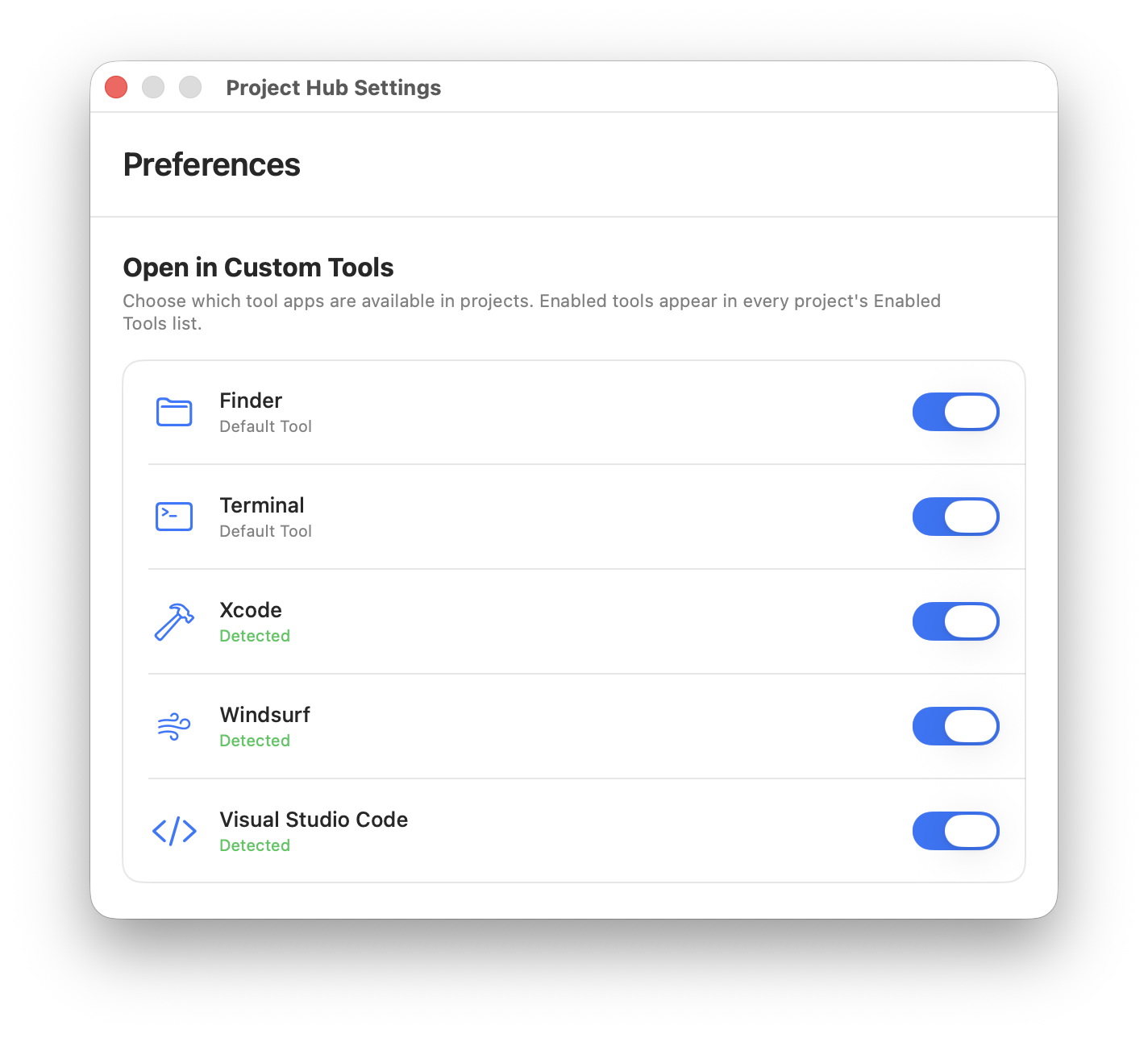
Note that enabling a tool in Preferences does not mean your project supports that tool. 注意,偏好设置中某个工具的打开并不意味着你的项目就支持该工具。
To allow user customization, tools enabled in Preferences will appear in the Settings section of each project. 为了方便用户自定义工具,在偏好设置中打开的工具会显示在各自项目中的设置一栏中。
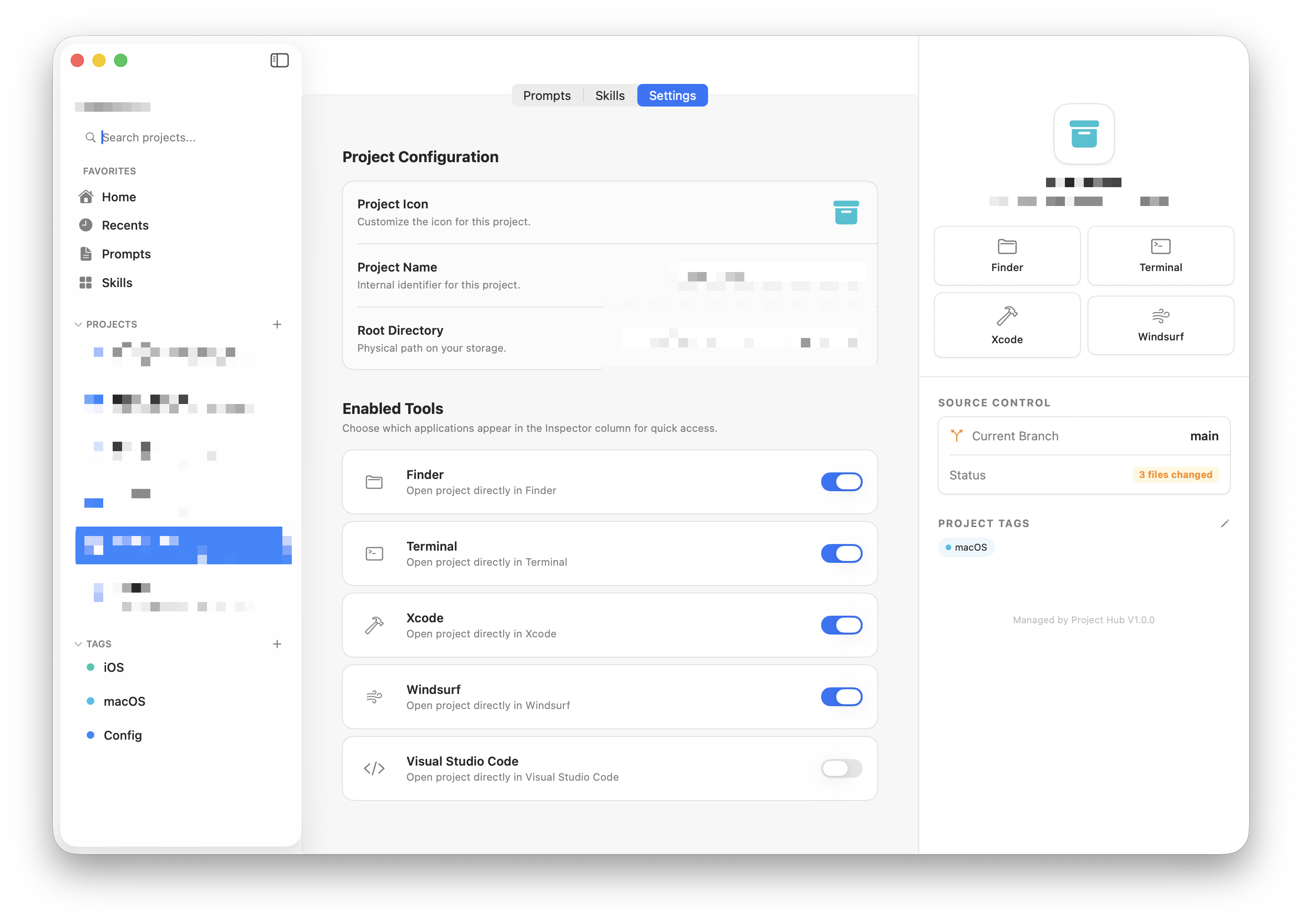
Only after you actually enable a tool's toggle in the project settings will the app support quick-launching that tool for the project. This allows per-project customization. 只有在各自项目设置中实际打开了对应工具开关后,该应用才会真正支持对应工具快捷打开,这方便用户进行自定义设置。
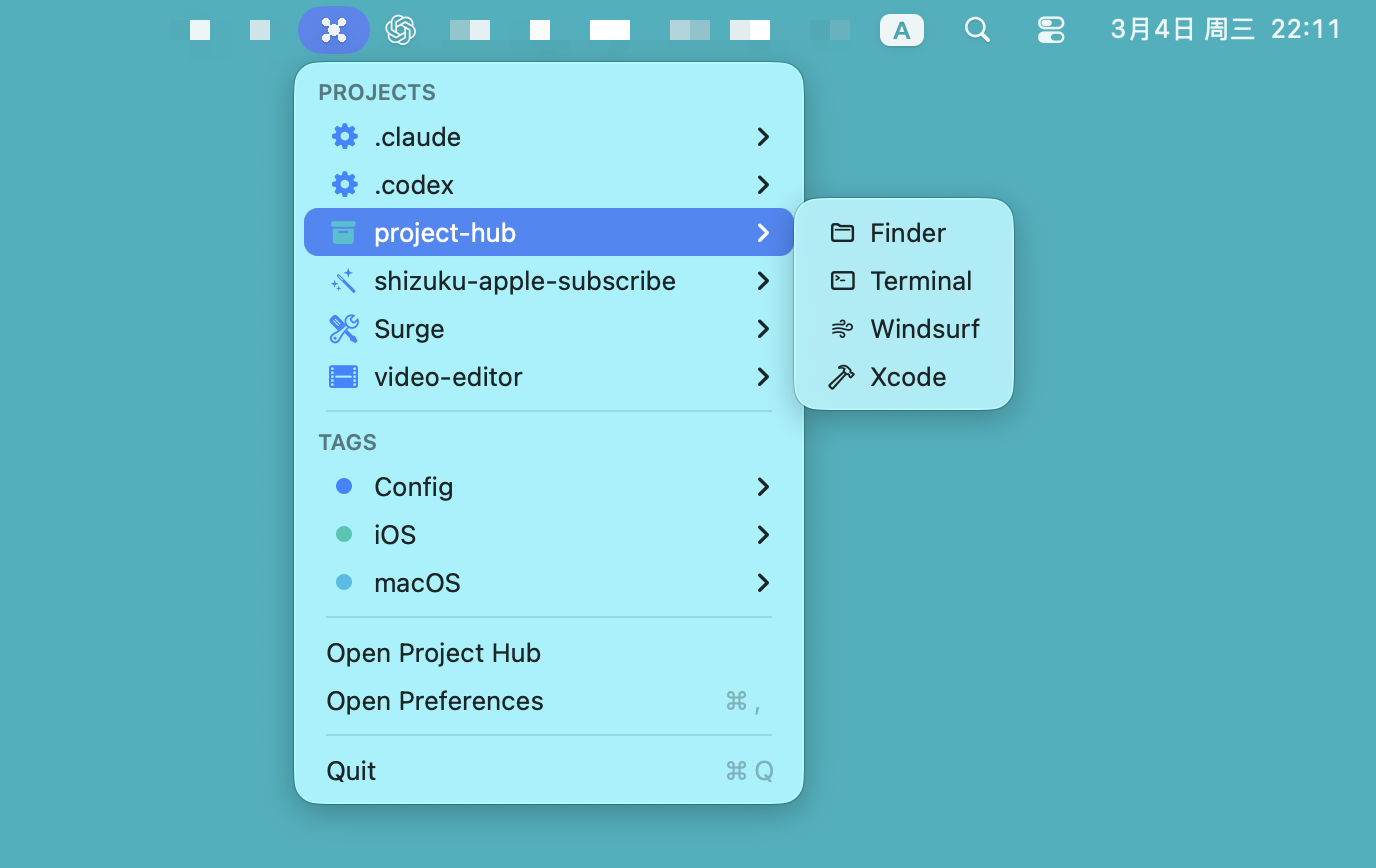
To further speed up project opening, Project Hub also provides a macOS menu bar shortcut entry, greatly improving efficiency. 为了进一步加快用户打开项目的流程,Project Hub 还增加了 macOS 菜单栏快捷入口,大大提升效率。
Prompt Management 提示词管理
Global Prompts & Project Prompts 全局提示词和项目提示词
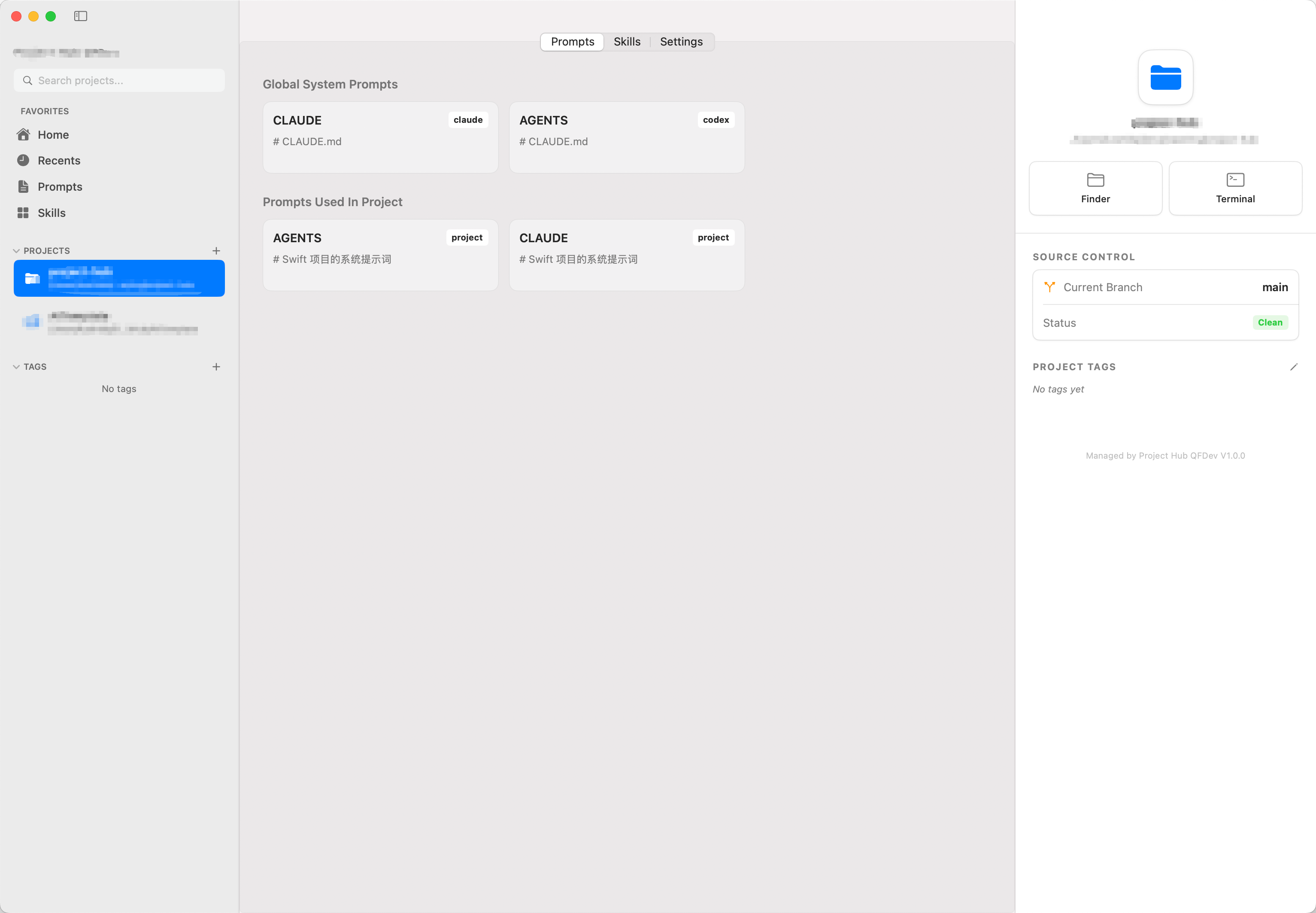
As shown above, when you enter a project's Prompts page, you will see two sections: 如图所示,进入项目的提示词(Prompts)页面,可以看见两栏:
-
Global System Prompts: For Codex, the global prompt file is located at
~/.codex/AGENTS.md; for Claude Code, it is at~/.claude/CLAUDE.md. Global system prompt files apply to all projects under the current setup, so they are displayed here. 全局系统提示词 Global System Prompts:对于 Codex 来说,全局提示词文件位于~/.codex/AGENTS.md;对于 Claude Code 来说,全局提示词文件位于~/.claude/CLAUDE.md。全局的系统提示词文件对当前设置下的所有项目通用,所以显示在这里。 - Prompts Used In Project: In addition to global system prompts, a project can also have its own AGENTS.md and CLAUDE.md files, which will be displayed here. 项目中使用的提示词 Prompts Used In Project:除了全局系统提示词之外,项目也可以有自己的 AGENTS.md 和 CLAUDE.md 文件,它们会显示在这里。
Managing Global Prompts 管理全局提示词
Global prompts are stored in different locations depending on the AI provider: Codex uses ~/.codex/AGENTS.md; Claude Code uses ~/.claude/CLAUDE.md. You can place your prompt files directly in these locations. If the path does not exist, you can create it manually.
全局提示词根据 AI 提供商的不同存放位置也不同,Codex 为 ~/.codex/AGENTS.md;Claude Code 为 ~/.claude/CLAUDE.md,你可以将你的提示词文件直接放入这个位置当中,若位置不存在则可以手动创建。
Managing Project Prompts 管理项目提示词
Since different projects may have different AGENTS.md and CLAUDE.md files, Project Hub provides a folder at ~/.projecthub/prompts (create it manually if it doesn't exist) for storing prompt files. Files here can be named freely — they don't have to be named AGENTS.md or CLAUDE.md. Choose a name that's easy to manage and remember, but it must be in .md format.
由于不同的项目可能有不同的 AGENTS.md 和 CLAUDE.md,所以 Project Hub 在 ~/.projecthub/prompts 下(若路径不存在则手动创建)建立了一个文件夹用于存放提示词文件,这里的提示词文件你可以任意命名而不必一定名为 AGENTS.md 或 CLAUDE.md。你可以取一个方便你管理和记忆的文件名字,但一定是 .md 格式。
Prompt files stored at ~/.projecthub/prompts will appear under the Prompts section:
在 ~/.projecthub/prompts 路径下存放的提示词会显示在提示词(Prompts)一栏下:
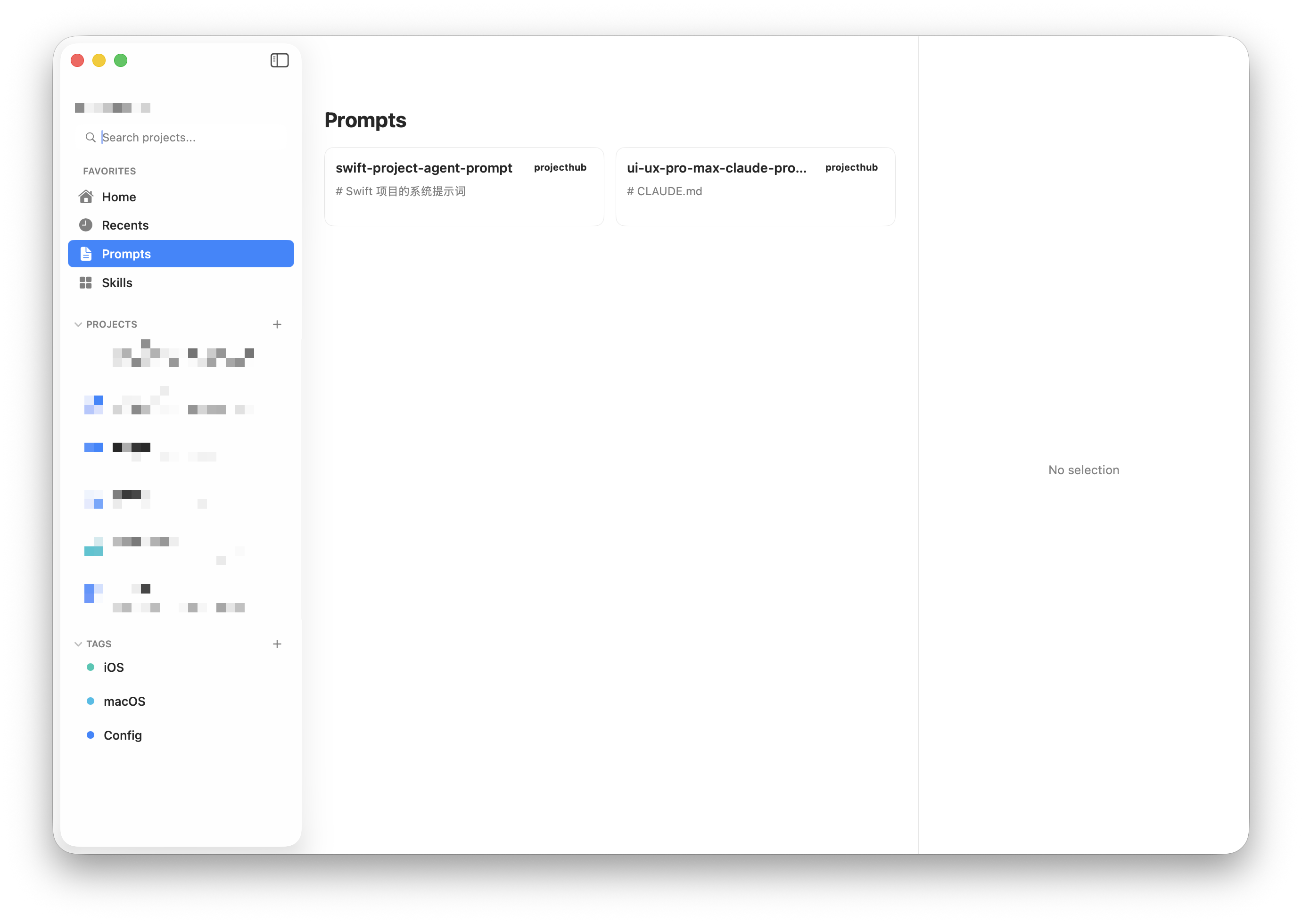
You can right-click to add a prompt to a project. The prompt file will be copied twice and renamed to AGENTS.md and CLAUDE.md, then placed in your project's root directory.
你可以鼠标右键将对应的提示词添加到项目中,此时该提示词文件会复制两份并分别命名为 AGENTS.md 和 CLAUDE.md 放到你项目的根目录下。
The Prompts section does not display global system prompts, as there is no need to. Prompts 一栏不会展示全局的系统提示词,因为没有必要。
Skill Management 技能管理
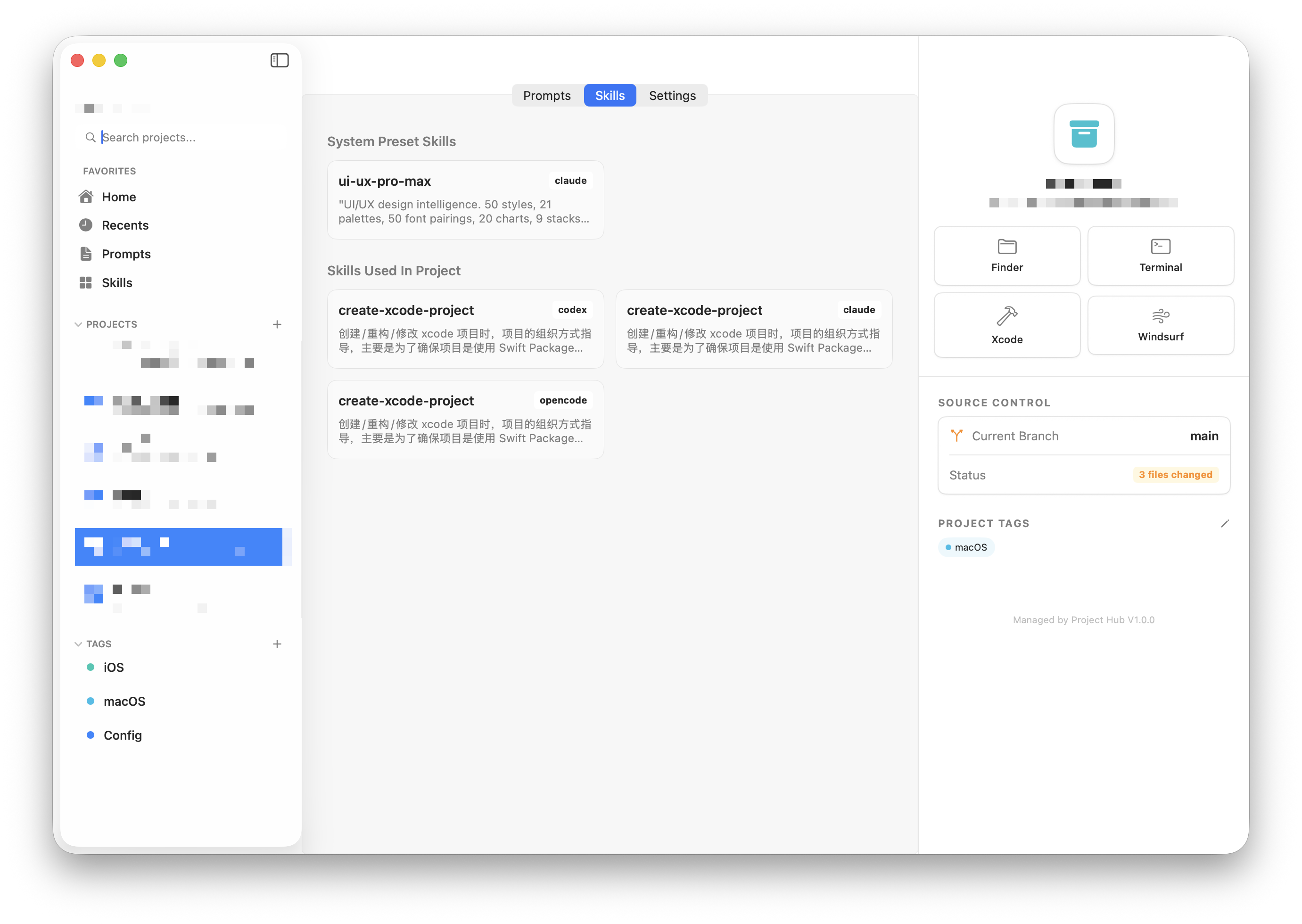
Global Skills & Project Skills 全局技能和项目技能
-
Global Skills are located in the user directory. For Codex, they are in
~/.codex/skills; for Claude Code, in~/.claude/skills. Global skills are available to all projects on the device. 全局技能位于用户目录下。对于 Codex 来说在~/.codex/skills;对于 Claude Code 来说在~/.claude/skills下。全局技能对于该设备下的所有项目可用。 - Project Skills are only available to the current project. So a project's actual skills consist of global skills plus project skills, displayed separately here. 项目技能仅对当前项目可用,所以一个项目实际包含的技能为全局技能加上项目技能,分别显示在这里。
Managing Global Skills 管理全局技能
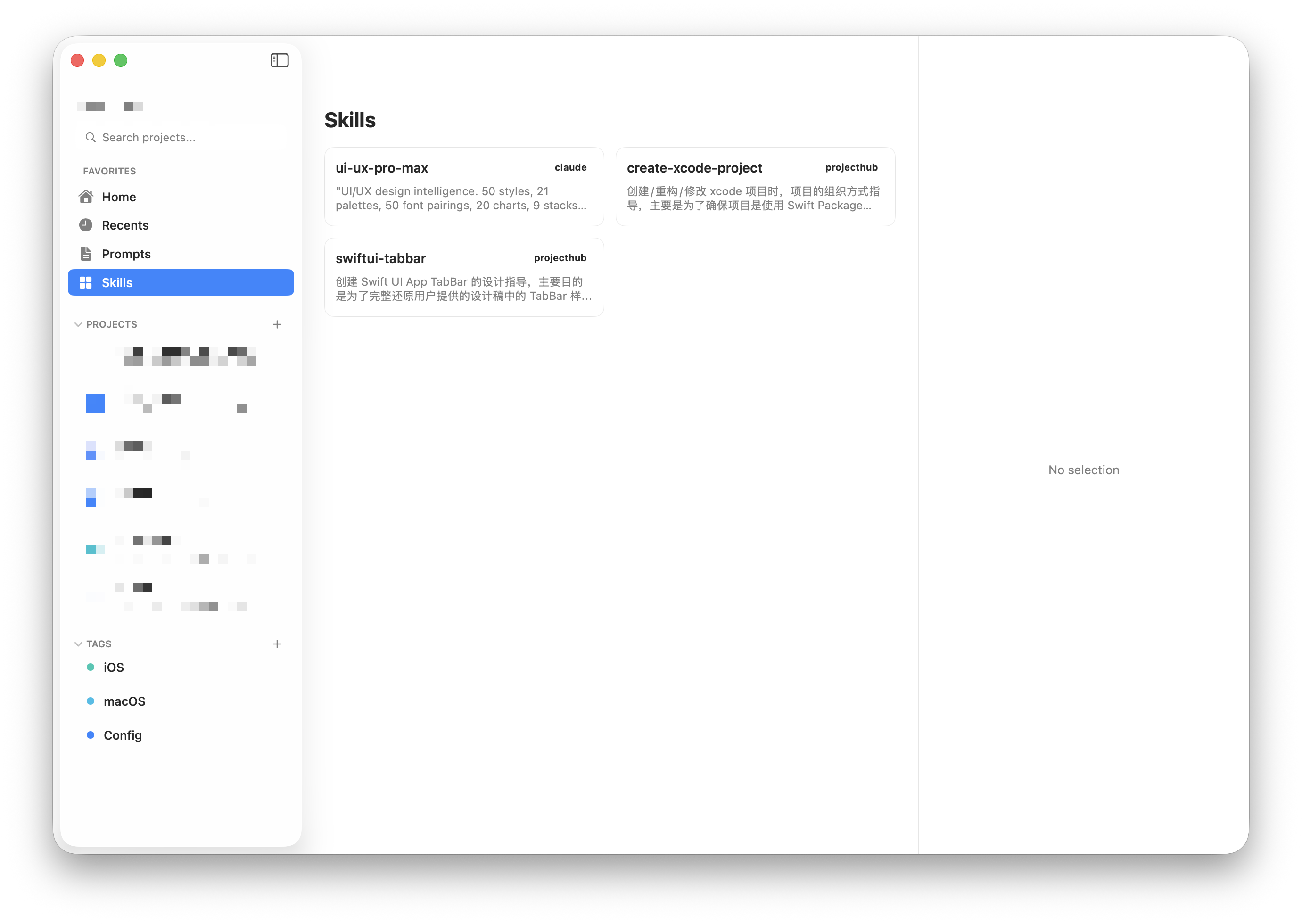
For Codex, you can place skill files directly in ~/.codex/skills and ~/.claude/skills. They will automatically take global effect for the corresponding model and appear under Skills in the left sidebar.
对于 Codex 来说,你可以将技能文件直接放入 ~/.codex/skills 和 ~/.claude/skills 下,它们自动在对应的模型下全局生效,且会显示在左栏的技能(Skills)下。
Managing Project Skills 管理项目技能
Additionally, for centralized skill management, you can also place skills in ~/.projecthub/skills. These are tagged as "projecthub". However, skills tagged as "projecthub" are not actually added to projects — you need to right-click them to add them to a project. The skills will then be copied to your project's .codex/skills and .claude/skills directories.
另外,为了方便用户统一管理技能,你也可以将技能放在 ~/.projecthub/skills 目录下,它们被标记为 projecthub。但被标记为 projecthub 的这些技能不会被实际添加到项目中,你需要点击鼠标右键将它们添加到项目中。此时这些技能会被复制一份到你项目的 .codex/skills 和 .claude/skills 下。
FAQ 常见问题
1. Why are the skills or prompt files in my project not being invoked by AI? 1. 为什么我项目中使用到的技能或者提示词文件 AI 不调用?
If you are using official Codex or Claude Code models, AI will invoke them. 如果你用的是官方的 Codex 或者 Claude Code 模型,那么 AI 是会调用的。
However, if you call large models through proxies, for example: 但如果你通过中转的方式调用大模型,比如:
- Using the Claude Code plugin in VSCode but changing the API endpoint to another model provider — since the model is different, skills and prompts may not be invoked. 通过 VSCode 的 Claude Code 插件,但修改了 API 的接口为其他模型产商,由于模型不一样实际技能和提示词可能不会被调用。
- Using proxy tools such as CCSwitch. 使用了诸如 CCSwitch 等工具中转。
These are not issues with Project Hub itself, but model limitations. If skills are not automatically invoked, you can trigger them manually. 这些不是 Project Hub 本身的问题,而是模型限制。若出现技能不自动调用的情况,你可以手动触发调用。
Based on testing, MINIMAX M2.1 and M2.5 currently do not support automatic skill invocation (via proxy), and require manual invocation. Other models have not been extensively tested. 经过测试,目前 MINIMAX M2.1 和 M2.5 都不支持自动应用技能(通过代理中转),需要手动调用,其他模型未经过详细测试。
2. About AGENTS.md and CLAUDE.md naming conventions 2. 关于 AGENTS.md 和 CLAUDE.md 的命名规则
Currently, it seems only Claude Code insists on using CLAUDE.md to name system prompt files, while other agents like Codex, OpenCode, etc. all support AGENTS.md. The naming varies depending on the model and agent. 目前似乎只有 Claude Code 坚持 CLAUDE.md 来命名系统提示词文件,而诸如 Codex、OpenCode 等其他代理都支持 AGENTS.md,根据每个大模型以及代理的不同,命名也有所不同。
For unified management, Project Hub supports both Codex and Claude Code naming conventions. Since most people use multiple models simultaneously for development, both conventions are supported here. Project Hub 为了方便统一管理,同时支持 Codex 命名规则和 Claude Code 命名规则。因为大部分人会同时使用多个模型开发应用,所以这里统一都做了支持。